For whoever runs it
 For whoever runs it
Put it on the big screen
The scoreboard on a TV or projector for the whole room: the seating, the standings and the prizes.
- 1
Open the tournament on the laptop by the TV
Plug a laptop into the television or projector and sign in as an admin. Open the tournament and, on the Rounds tab, press Put it on the big screen, beside Expand all.

It opens in a window of its own, so the tournament stays where it was. Only an admin can open the big screen.
- 1A
Get the TV to show the laptop
Plug the laptop into the TV with an HDMI cable, and note the number printed beside the port you used — for example, HDMI 2. Then press Input on the TV's remote and choose that number.
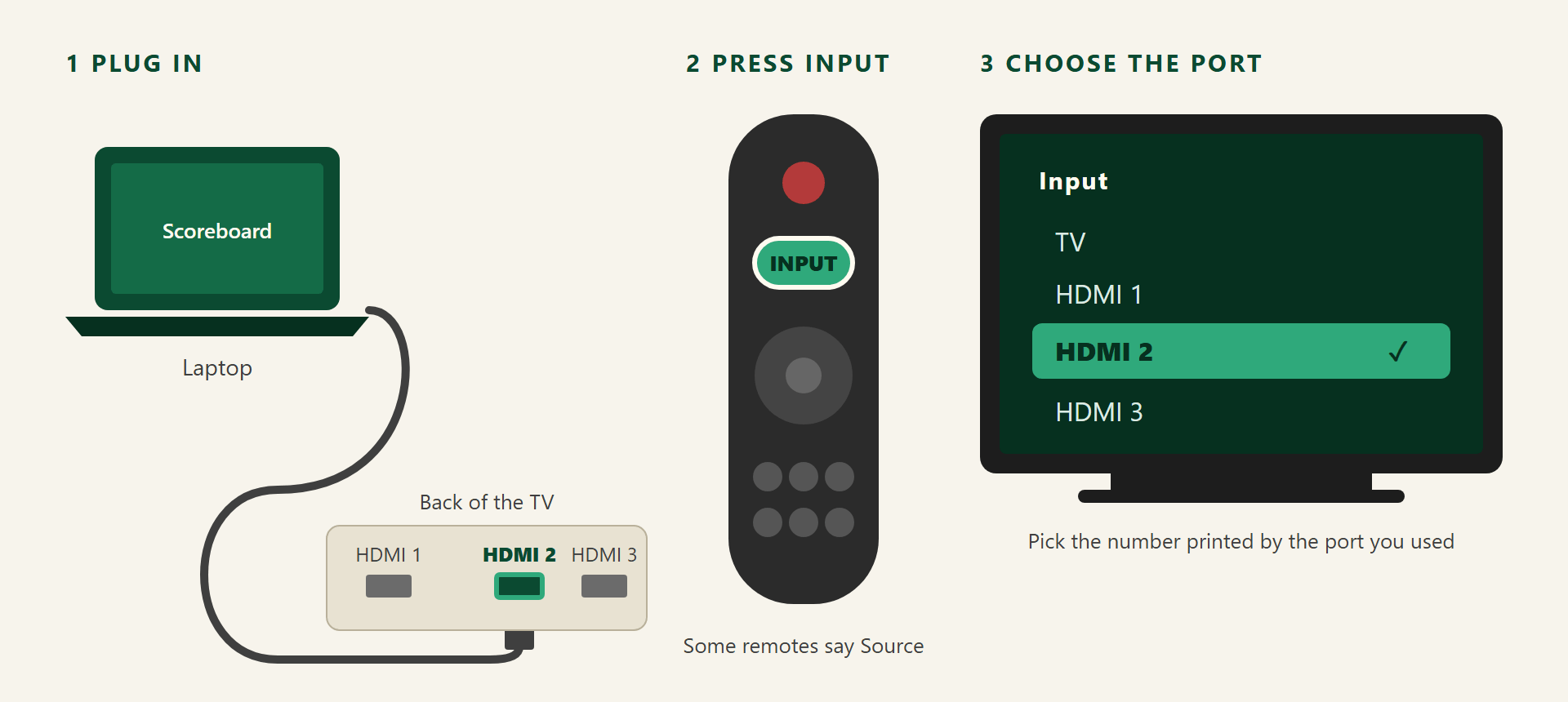
Some remotes call the button Source. If the screen stays dark, try the other HDMI numbers in the list. No cable? If the TV takes a cast, Windows key + K and pick the TV. Either way, Windows key + P and Extend keeps the laptop free.
- 2
Where everybody sits
The big screen fills the television: every table in the round being played, who is partnered with whom, and who sits out.
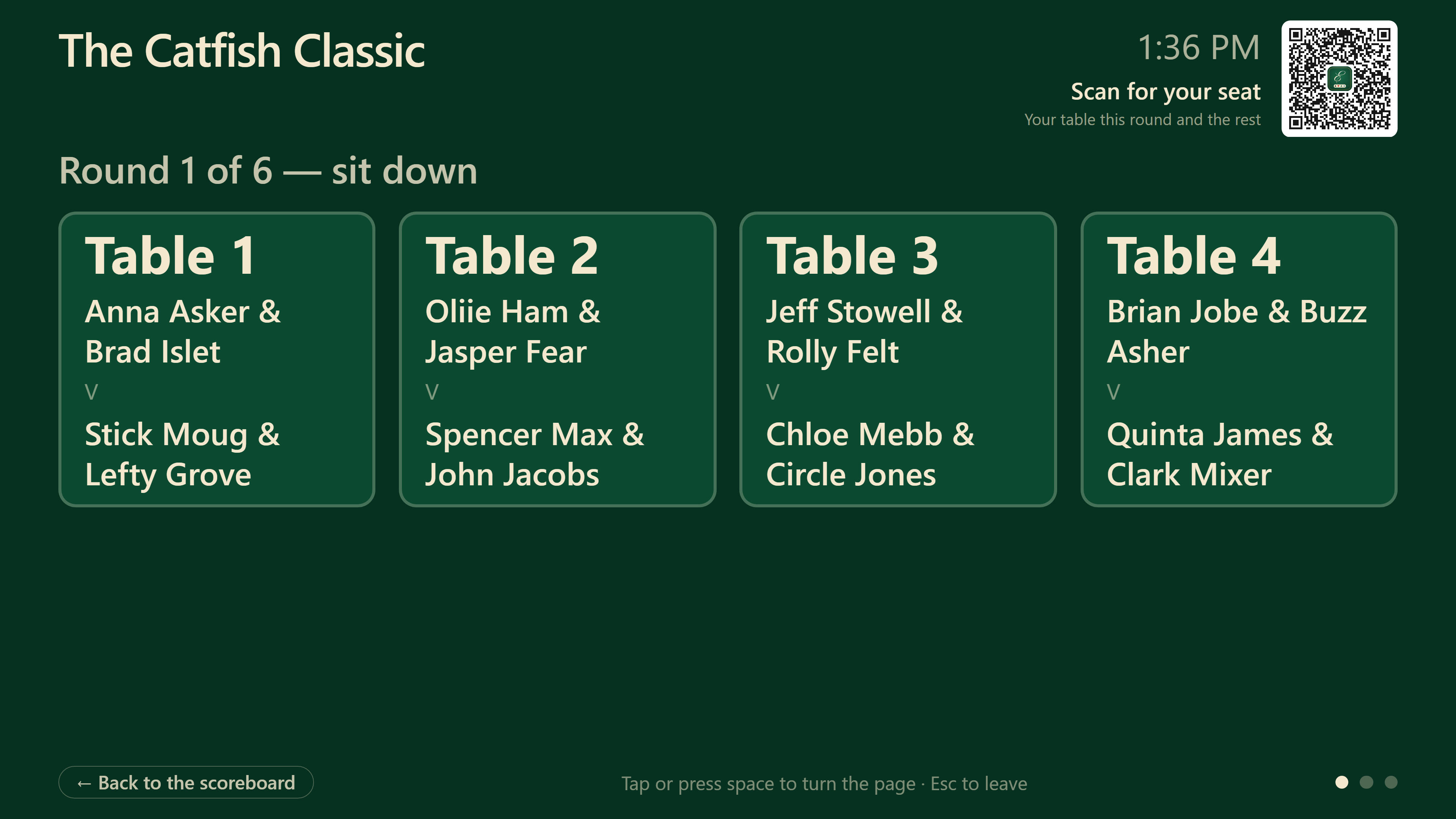
Your browser's full-screen key, F11 on most laptops, hides everything else. It keeps itself up to date as the scores come in.
- 3
Where everybody stands
Eight seconds later it turns to the standings, and it keeps turning on its own all evening.
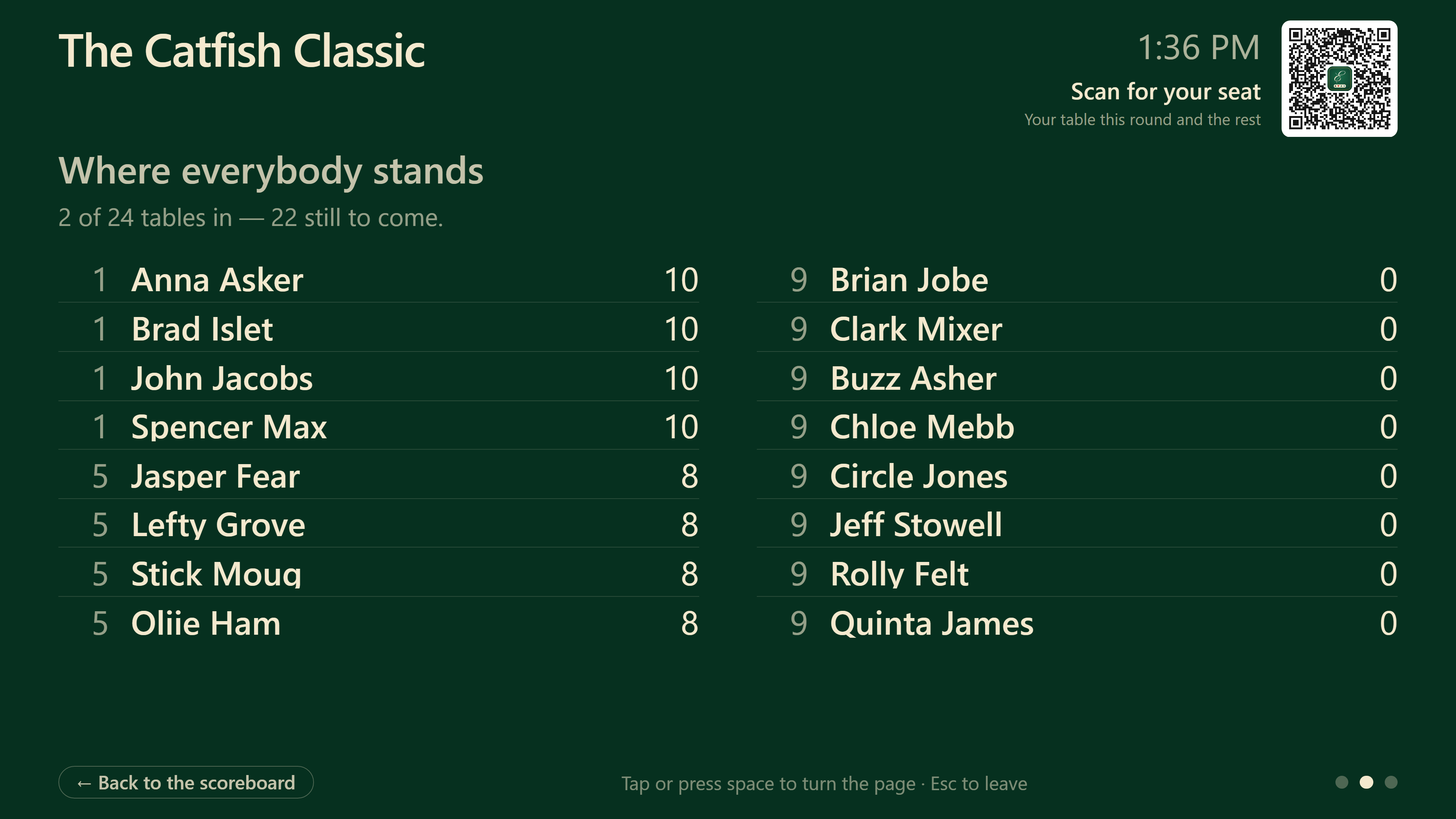
A tap or the space bar turns it by hand and holds it there for half a minute.
- 4
What they are playing for
Then the prizes: what it costs to play and what each place pays. A tournament playing for nothing skips this one.
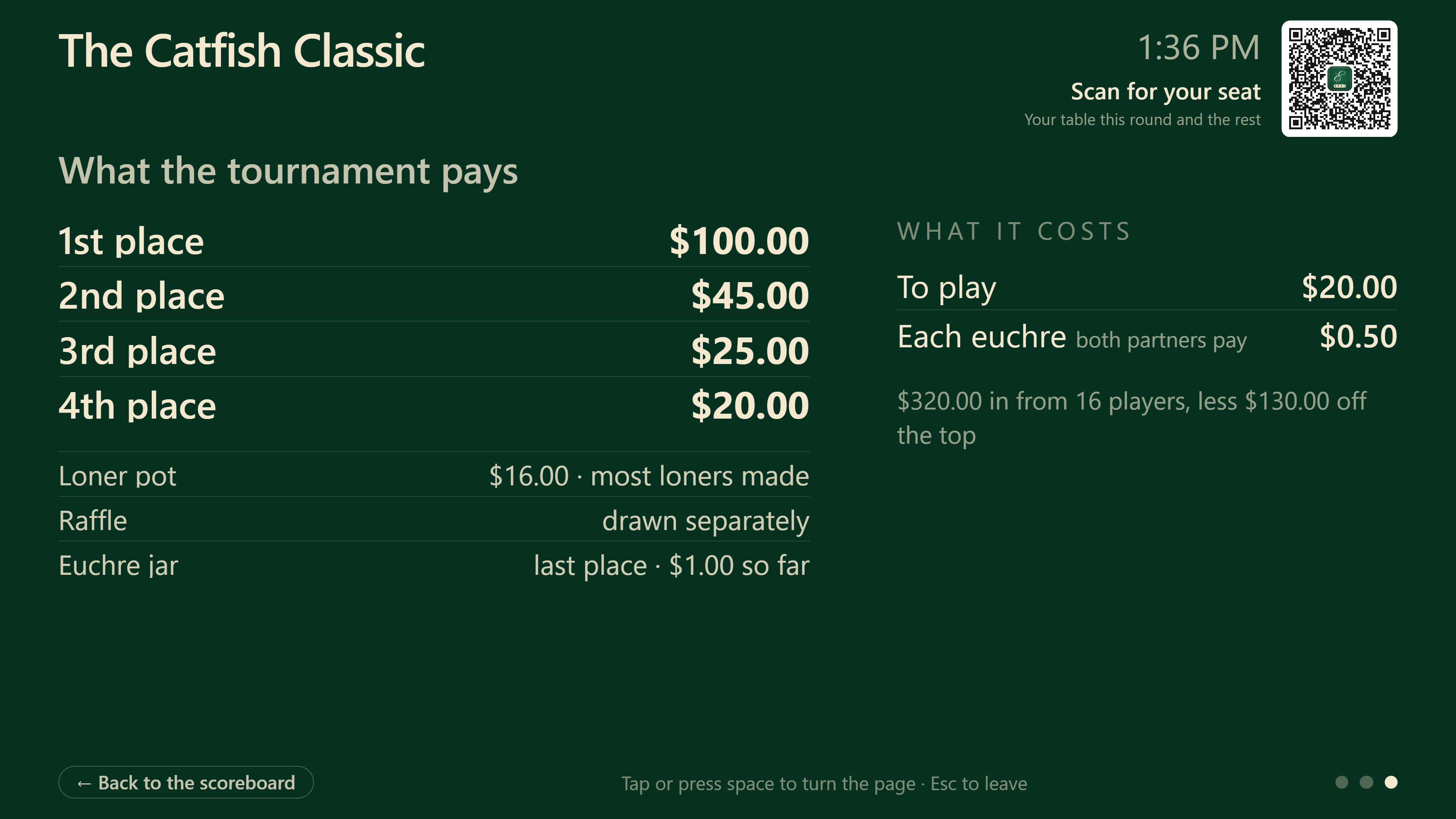
Escape, or Back to the scoreboard in the corner, leaves the big screen.