For whoever runs it
 For whoever runs it
Bringing your history in
Past tournaments from a spreadsheet: the sheet, the check, and bringing it in.
- 1
Start on History & backups
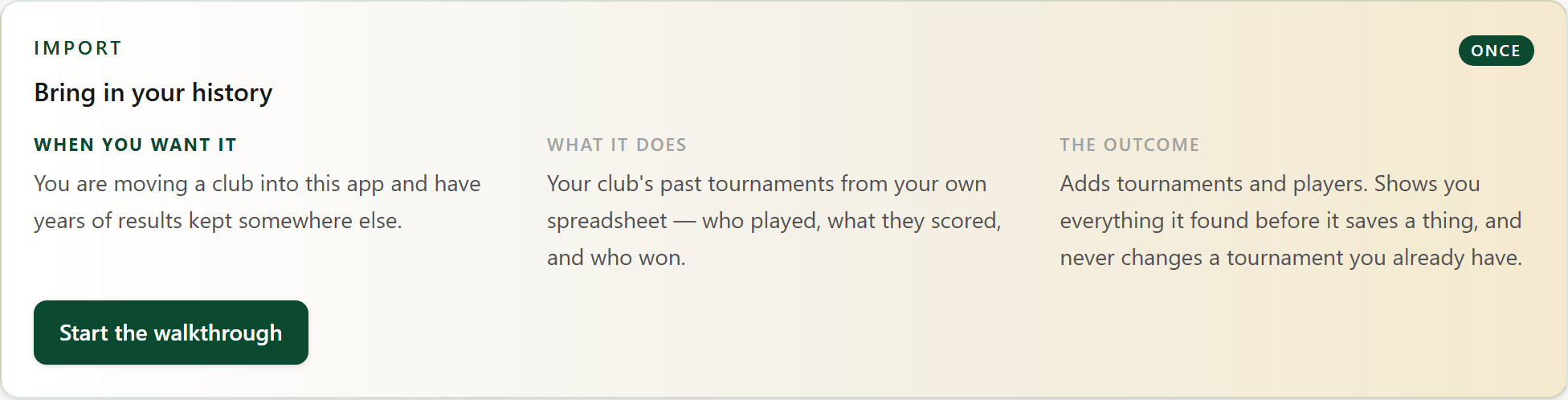
Open History & backups from the dashboard. The Bring in your history card starts the walkthrough.
- 2
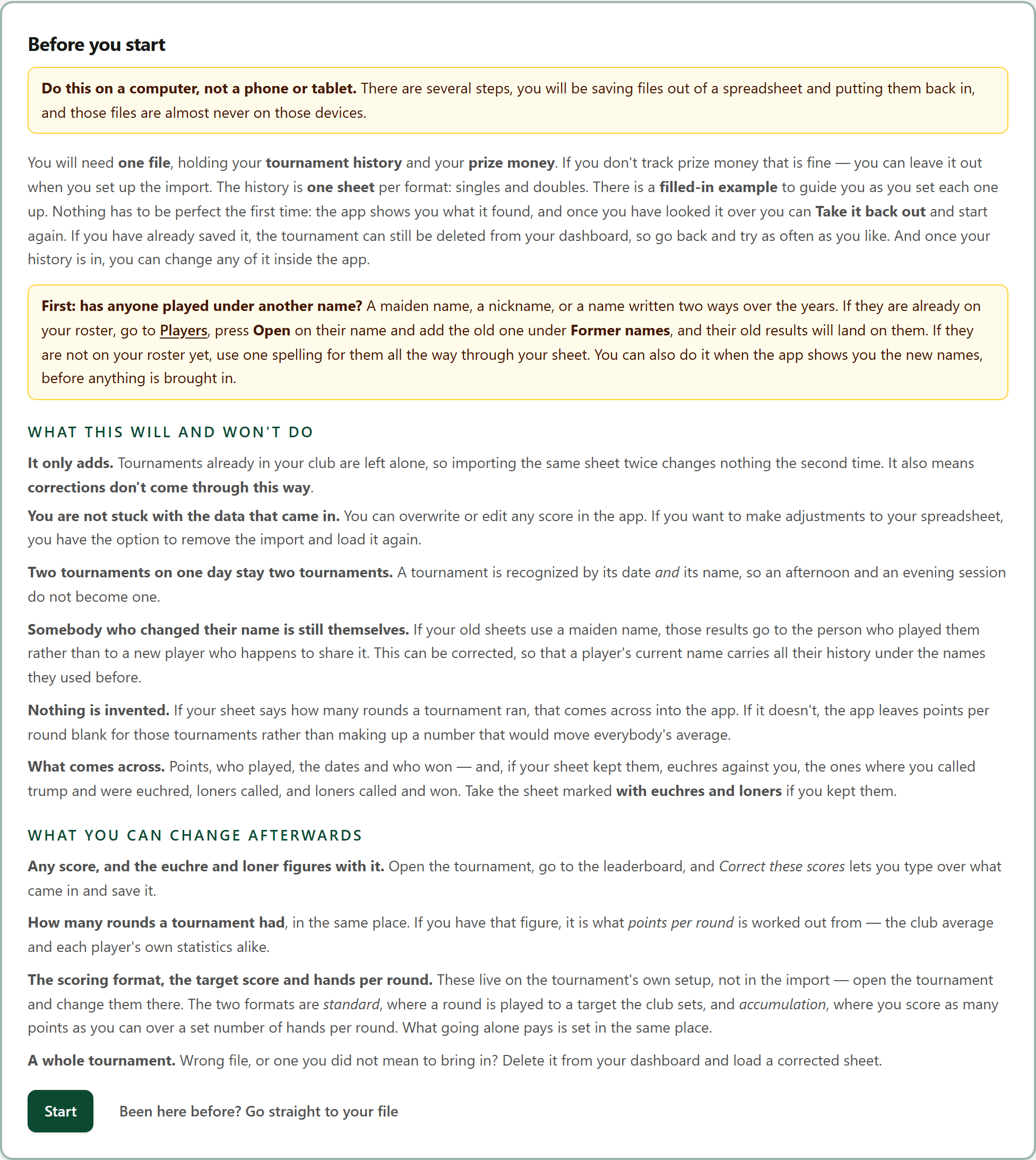
Read what it will and won't do
Do this on a computer. If anyone has played under another name, add it on Players first, so their old results find them.
- 3
Fill in the sheet
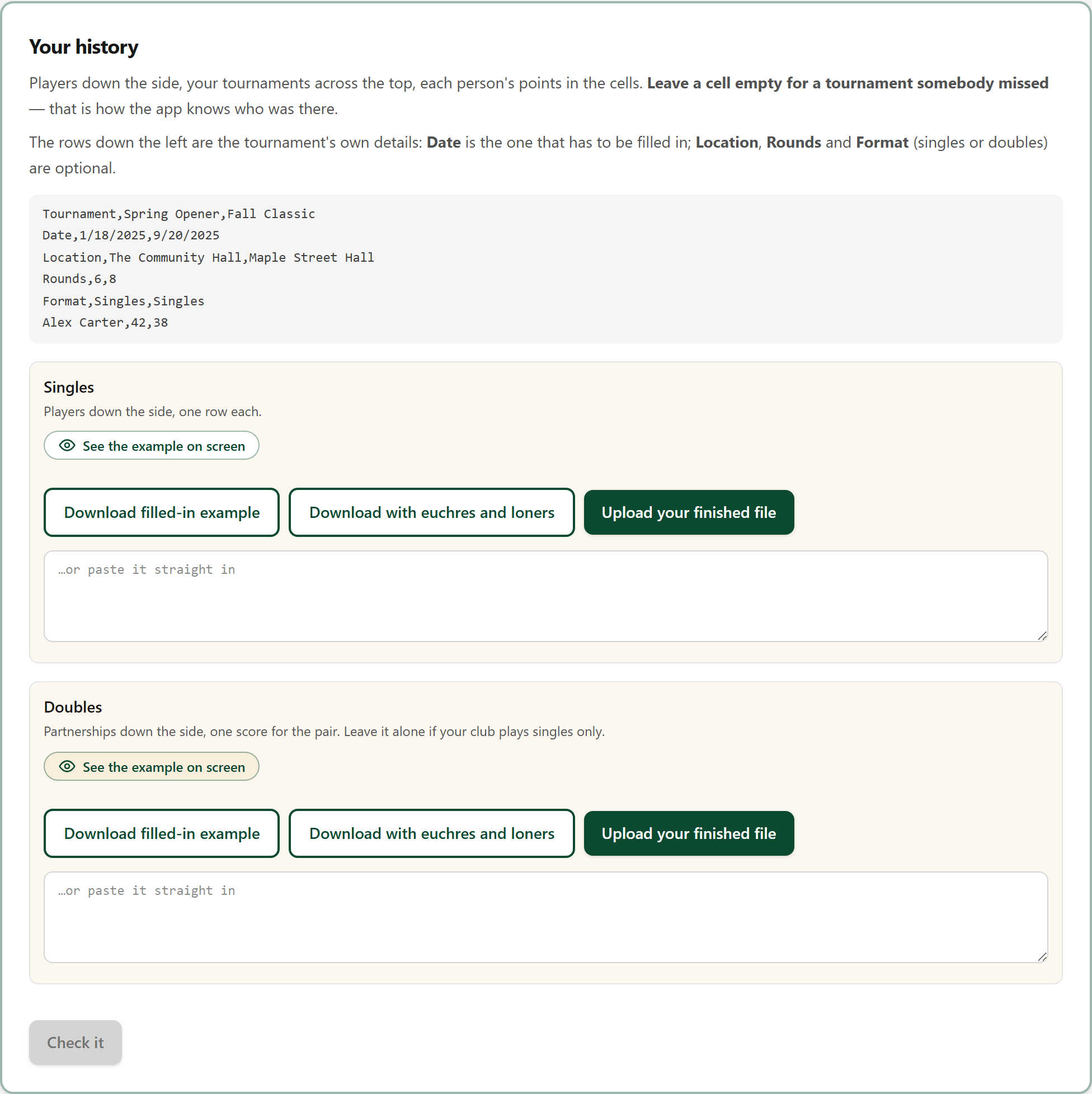
Download the filled-in example, put your own tournaments and players in, and save it as a CSV. Singles and doubles each have their own sheet.
- 4
Upload it and check it
Upload your finished file and press Check it. Nothing is saved yet: the app shows what it found, and what it would add.
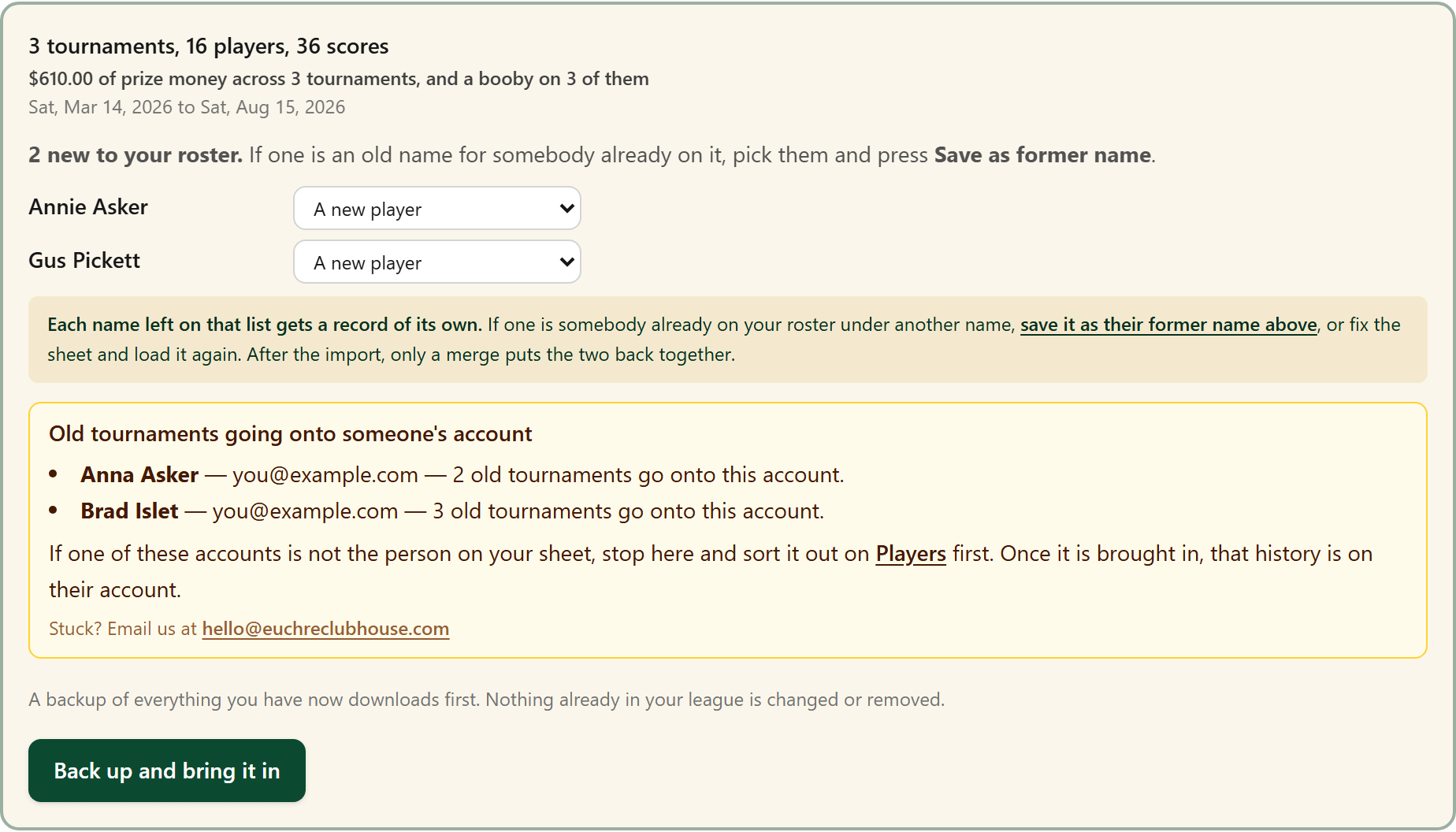
A new name that is really somebody already on your roster, like Annie for Anna here? Pick them beside it and press Save as former name before you bring it in.
- 5
Back up and bring it in
The one press that writes. A backup of everything you had downloads first, then the tournaments come in.
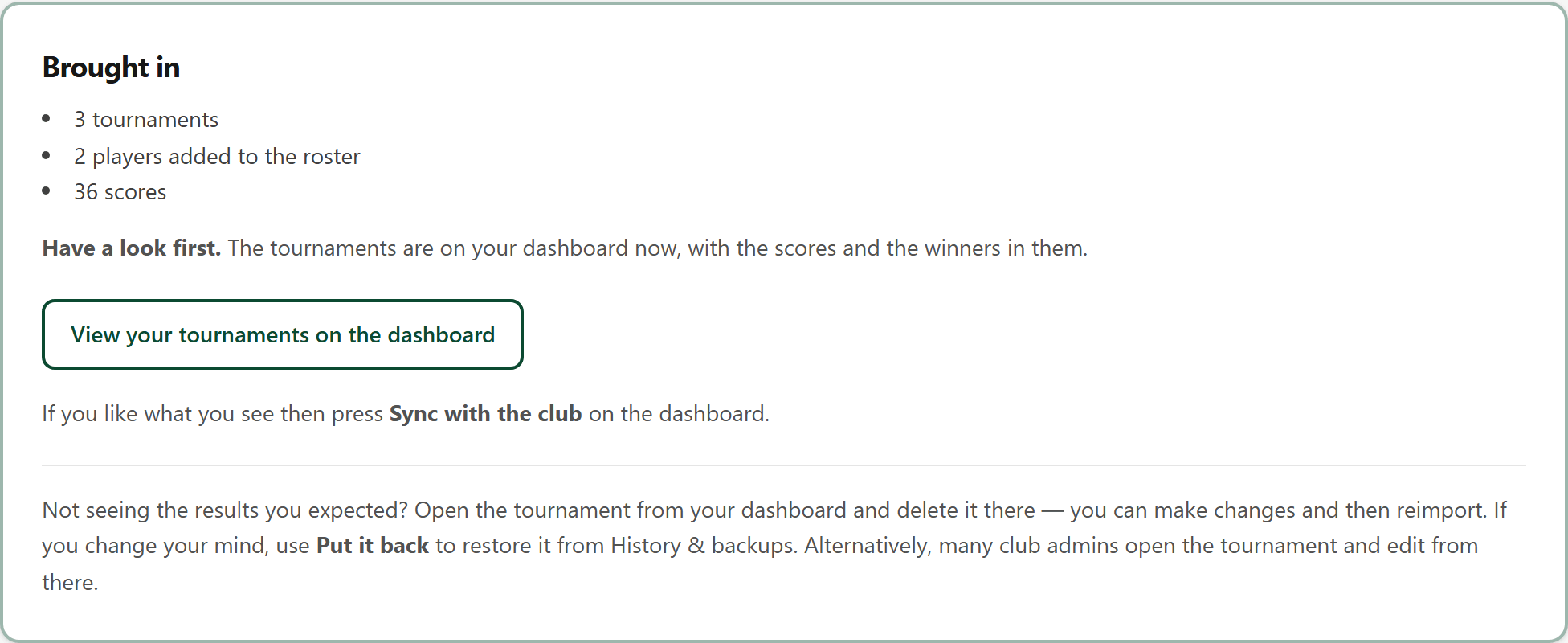
- 6
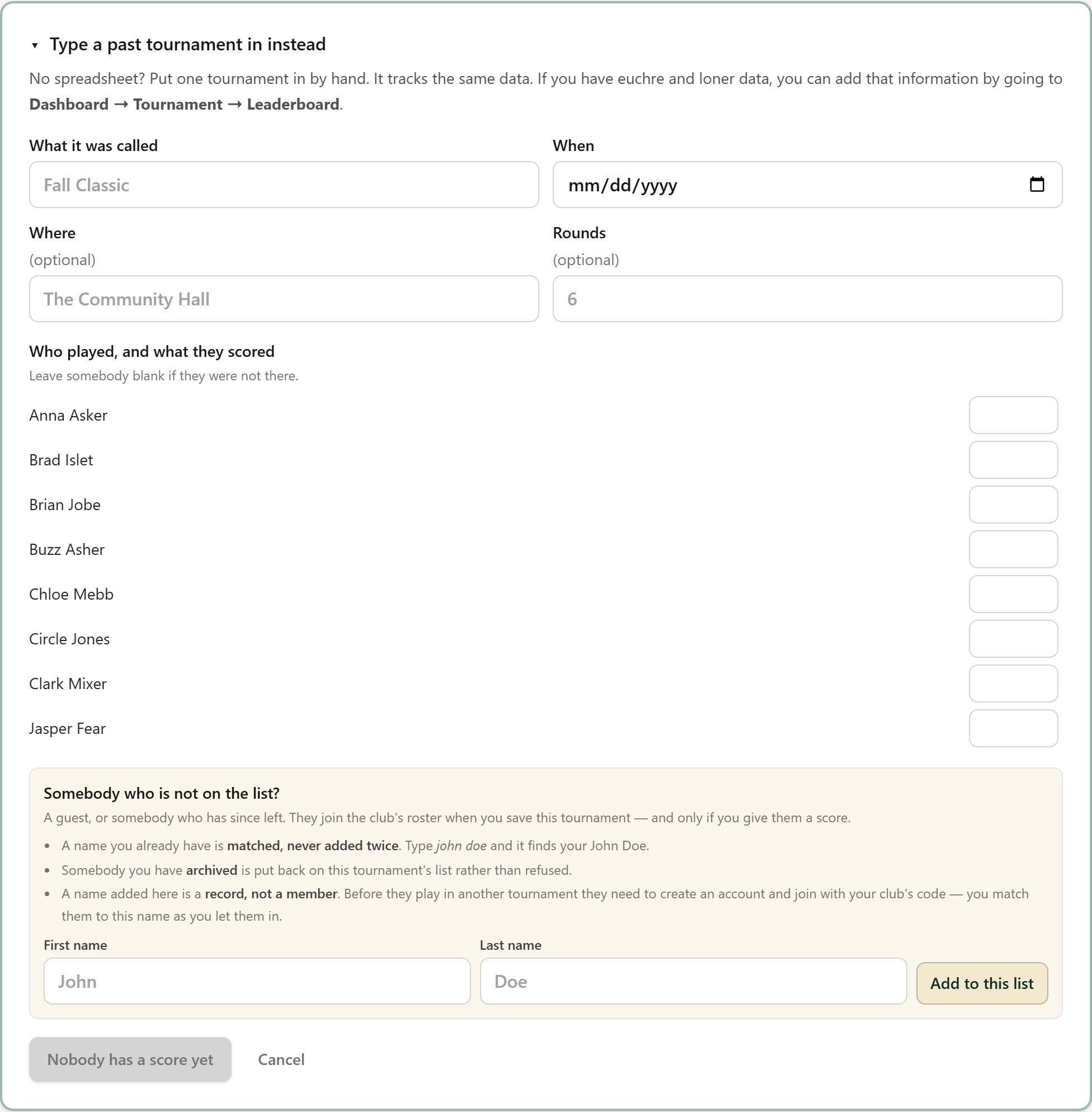
Only a few? Type them in
For a handful of tournaments, Type a past tournament in instead skips the sheet.
- 7
Add euchres and loners
Once a tournament is in, open it from the Dashboard. On its Leaderboard, Euchre and loner data opens a row of boxes under each player: how often their team was euchred, how many of those they called, and their loners.
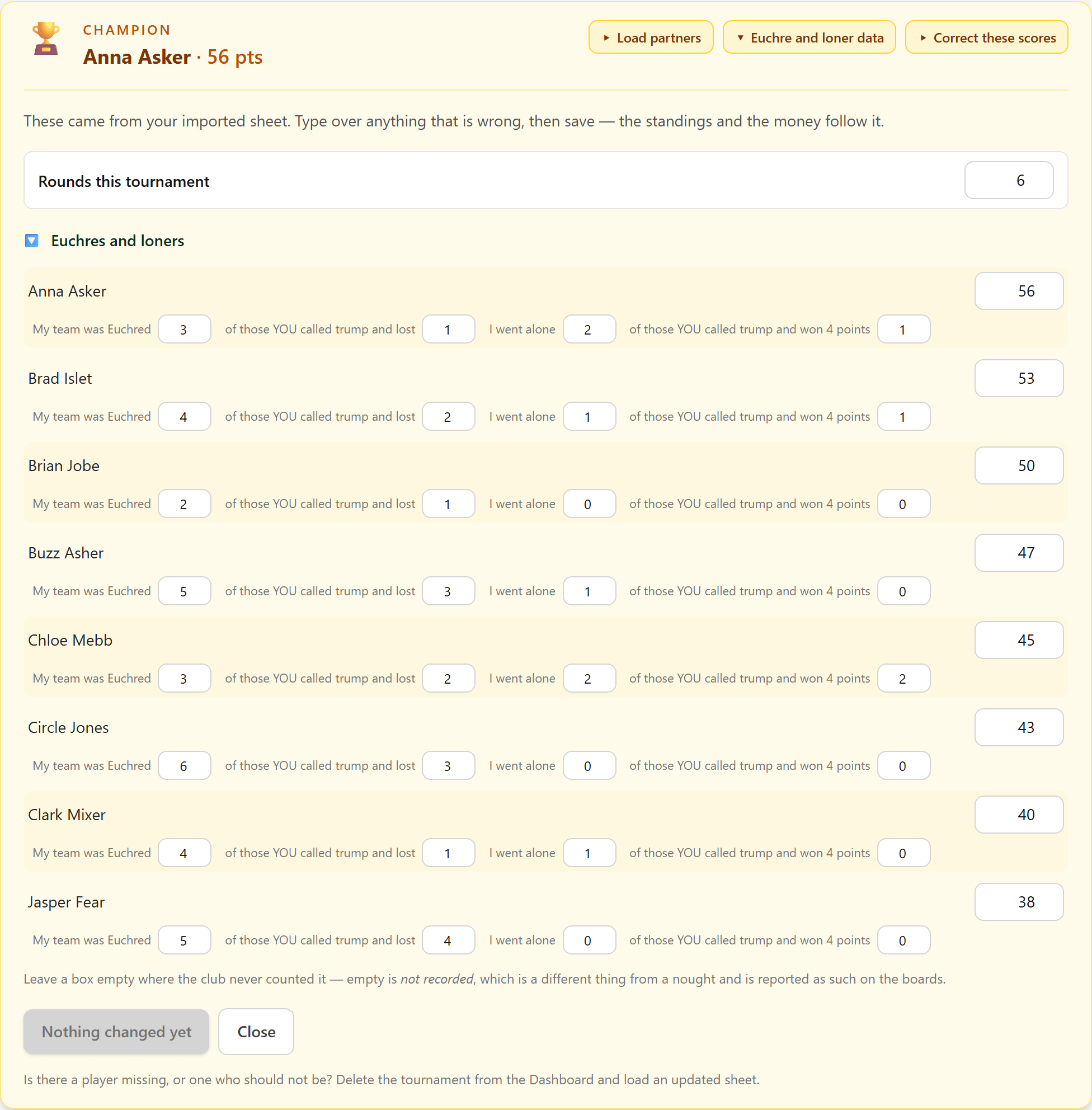
Leave a box empty where the club never counted it. Save, and the figures reach the boards like any tournament played in the app.
- 7A
Who played with who
Optional. Load partners, beside Euchre and loner data, takes a grid of who partnered whom, so the app can spread partners across tournaments. Download filled-in example shows the shape: names across the top and down the side, and in each cell the points that pair scored.
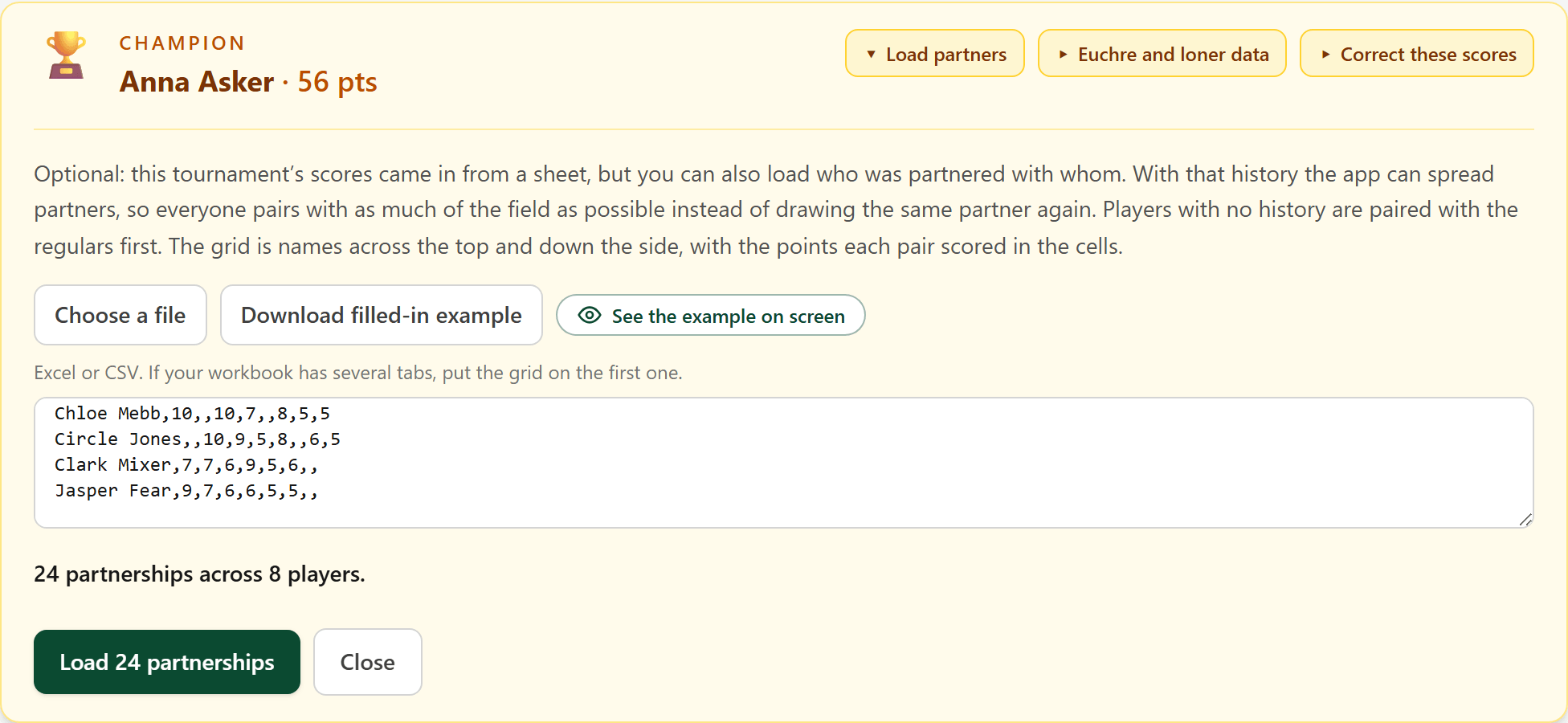
Choose your CSV file or paste the grid in, and the app says how many partnerships it found before anything is saved. Here, the example for this tournament: 24 partnerships across 8 players.